Mark up the page itself.
Open the extension on any page, circle, box or pin what should change, and type a comment beside it. Press Send and the screenshots, your comments and the elements you marked go to the Claude Code or Codex session working on that site.
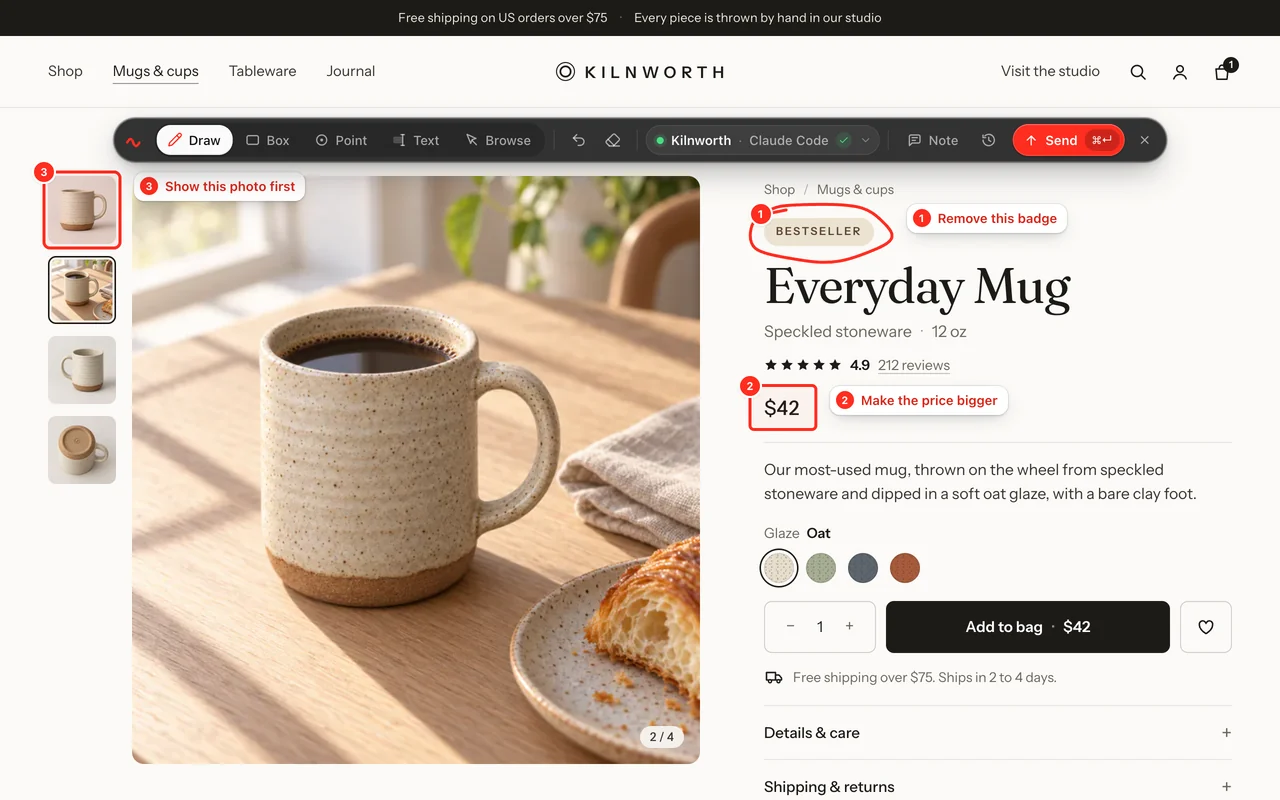
Five tools, each on one key
Open the extension from the browser’s toolbar, or press Alt+Shift+R. Its toolbar floats over the page, and the page still scrolls.
- Marks stay on what you marked. They are pinned to the page, not the screen, so they stay in place as you scroll.
- A note for the whole page. For anything that isn’t in one place, add a page note instead of a mark.
- Nothing lost on a reload. Until you send, your marks and comments are kept for that page, so a reload doesn’t lose them.
The screenshots are taken for you
When you press Send, the extension scrolls to each marked area and captures it, with your comments written on as labels. It sends the parts of the page you marked, not your whole screen.
- Marks close together share a screenshot. Each one is numbered, so the agent can match every label to its comment.
- The toolbar stays out of them. It is hidden while the extension captures, and the page is scrolled back to where you were.
The exact elements, not a picture to guess from
For each mark, CircleIt records the elements under it: a CSS selector, the text, 12 computed styles such as font size and colour, a short piece of the HTML, and source-file hints when the page exposes them.
- Source hints. Vue component files, Svelte locations, React component names, and data-source or data-component attributes.
- Form values are never read. What people typed into fields is left out of the text and stripped from the HTML. Password fields are never read.
Localhost, staging and live
The extension runs in your own browser, so it works on any page you can open there: a dev server on localhost, a .test domain, a staging site behind a login, or the live site. Chrome’s own pages and the Chrome Web Store are off limits to every extension.
- The right site, without asking. Each project knows the addresses its site runs on. The extension matches the page you’re on and picks the project for you.
Questions
Does it work on pages behind a login?
Yes. The extension runs in your browser, so it sees the page as you do, signed in. Nothing about your session or cookies is sent.
What does the extension capture?
When you open it, it sends the page address to CircleIt to find the project. Nothing else until you press Send. Then it takes crops around your marks, the page address and title, your marks and comments, and details of the elements under each mark. It never reads what is typed into form fields, and it doesn’t collect cookies or your browsing history.
Which browsers does it work in?
Chrome and Microsoft Edge on a computer, and other browsers built on Chrome, such as Brave and Arc. All install it from the Chrome Web Store; Edge asks you to allow extensions from other stores first. Safari, Firefox and phones aren’t supported.
How many marks can one send hold?
Up to 50, plus a note for the page. One press of Send is one change, whether it has one mark or ten.
Stop describing it. Circle it.
Your first 10 changes are free. No card needed.
Each mark gets a number and a comment
When you finish a mark, a comment box opens beside it. Enter saves and Shift+Enter starts a new line. Click a number to edit its comment or delete the mark.
Kilnworth
Everyday Mug
Make the price bigger